Looking for a guide on how to create a booking form in WordPress for your hotel or vacation rental website? Having a modern online presence for your hospitality business is impossible without integrating forms for gathering information and getting in touch with your clients and visitors. Whether you are setting up a direct booking or appointment scheduling website, properly configured forms can help you gather necessary information and make the reservation process smooth and automated. In this post, we’ll look at how to add online booking to WordPress site with one of the MotoPress plugins – Booking Calendar, designed to streamline your reservations.
Why Booking Forms Matter for Your Website

Booking forms aren’t just a convenience—they’re the basis of any WordPress site that relies on direct bookings or appointment scheduling. A well-designed booking form captures everything in one smooth interaction without forcing users to email, call, or navigate multiple steps. Even when you’re just learning how to create a booking system in WordPress using a simple plugin, modern form-building tools can help a lot. From dates and preferences to contact details and payments, there’s a lot forms can do. They usually come packed with various benefits, such as:
- Better user experience through collecting all booking details in one place;
- Higher conversion rates by automating the booking process;
- User-friendly confirmations and notifications;
- Multiple integrations with calendars and payment systems.
Beyond that, booking forms also provide structure to your workflow. For example, if you wonder how to create a booking form in WordPress while managing a hotel, you may be looking for a smooth and secure tool for getting customer data. Using WordPress booking forms and WordPress calendar booking features is highly recommended. A booking calendar for WordPress centralizes reservations and helps prevent double bookings, aside from many other obvious benefits. Instead of managing multiple spreadsheets or inbox message threads, having a booking form plugin connected with your WordPress website allows you to automate tracking and data collection to stay organized.
What is MotoPress Booking Calendar?
Before we dive deeper into explaining how to create a booking form in WordPress, let’s learn more about Booking Calendar.
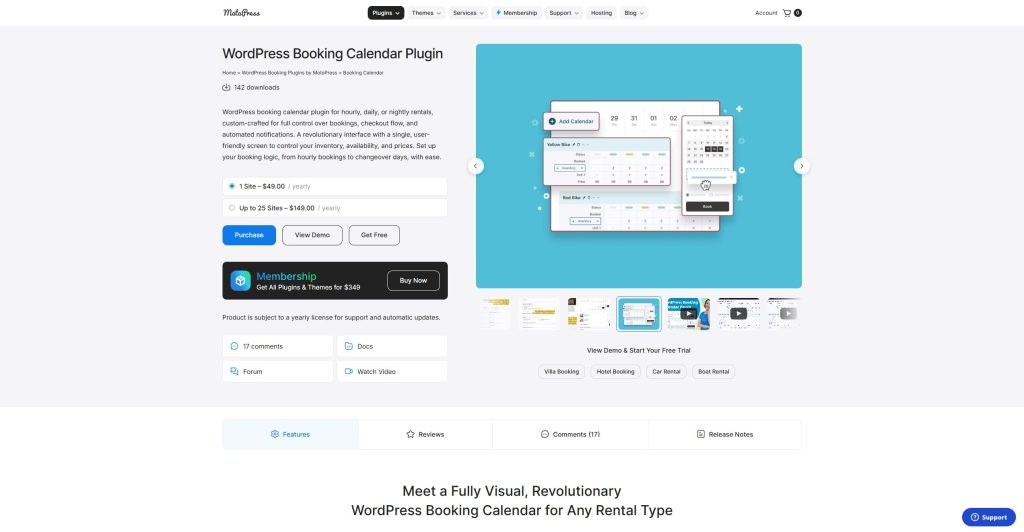
MotoPress Booking Calendar WordPress plugin is a versatile and flexible tool designed for all kinds of property rentals and hotels. From STRs to equipment rental businesses that use WordPress, every company that needs a calendar for scheduling events and reservations and using booking forms will benefit from using this plugin. This WordPress booking plugin supports three booking modes, allowing you to choose what’s best for the items you rent out. Moreover, the plugin has a user-friendly availability customization interface with an integrated inventory manager that can be used even for short-term rentals and hotel websites.
As for the booking form capabilities, the plugin comes equipped with a Gutenberg-powered form builder. It allows you to build any kind of form for your hotel booking website. Whether you need to gather data from your customers or provide more options during the reservation process, Booking Calendar has what you need. The plugin is also equipped with support for the Stripe payment gateway and automated email notifications.
Key features:
- Visual calendar with bulk editing and timeslot support;
- Nightly, hourly, and daily booking modes;
- Full control over inventory and pricing;
- Multiple pre-designed fields for booking forms;
- Easy integration via blocks and shortcodes.
| Name | Developer | Price | Installations |
|---|---|---|---|
| Booking Calendar | MotoPress | Free or from $49/year | 129+ |
How to Add a Booking Form Using Booking Calendar

Now that we’ve learned more about Booking Calendar, let’s explore how to create a booking form in WordPress using this plugin. As we’ve just mentioned, it includes a visual form builder allowing you to easily craft almost any kind of form you need. For example, it can be really useful for vacation rentals (such as villas, apartments) and hotels looking for a simple way to gather guest data. Below, we’ll walk you through the simple steps of configuring a booking form that is not just user-friendly but also meets all the requirements of modern STR businesses.
Step 1. Creating a Booking Form
So, how to create a WordPress booking system? Thanks to the Booking Calendar plugin, which is built to provide a smooth availability and inventory management process, while also giving you access to user-friendly form building. However, to access the latter, you first need to create the calendar using the Calendars tab and populate it with accommodation options available for booking or rental. After that, building a dedicated booking form for that calendar is quite simple and can be done in a few steps using the booking calendar WordPress plugin:
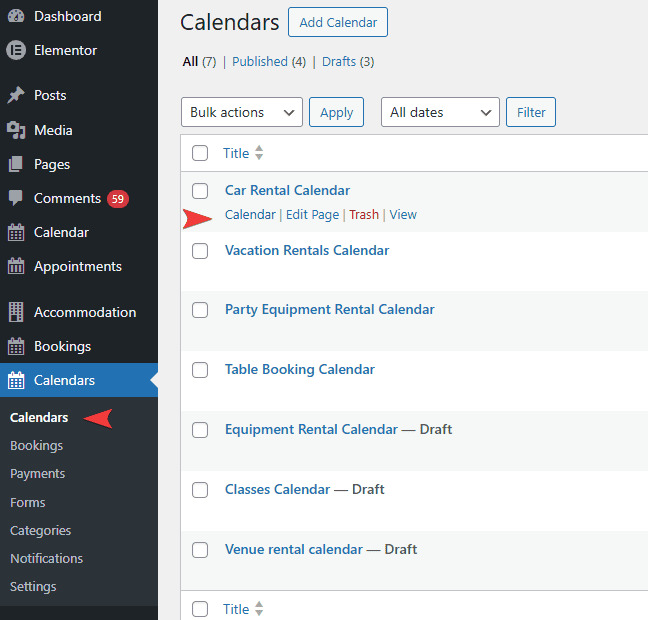
1. Open your calendar in the plugin dashboard by navigating to the Calendar tab and choosing it.
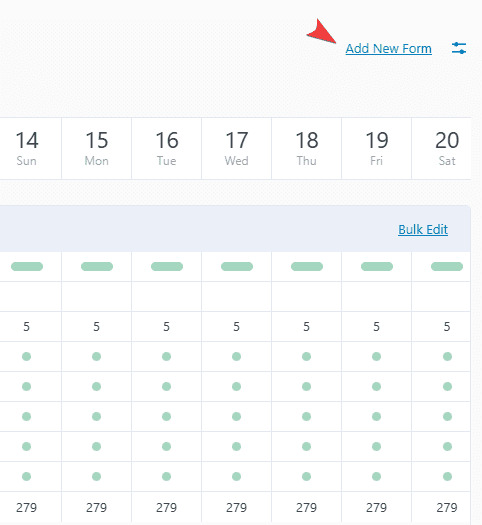
2. In the top right corner of the page, choose “Add New Form“. Alternatively, you can simply go to the Forms tab and press the Add New Form button as the first step to learn how to create a booking form in WordPress.
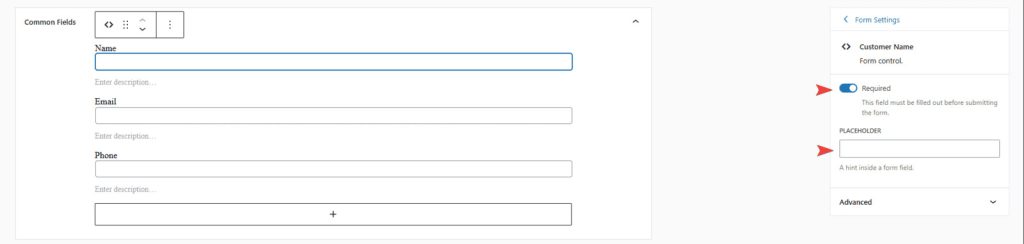
3. In the newly opened form builder page, you’ll see a default form layout that consists of three fields – Name, Email, and Phone. You can customize their settings (such as a required field setting and placeholder) using the integrated Gutenberg tools without having to code anything from scratch.
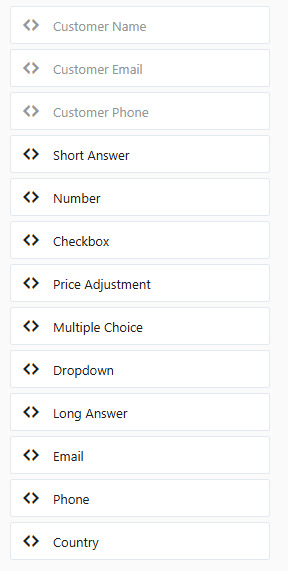
4. To add new fields with the WordPress booking form plugin, drag them from the field selector sidebar on the left. There are a total of 10 fields available with 8 extra layout blocks. They allow you to enable more ways to gather useful data from your hotel guests and make your form look spectacular by using images, grids, separators, etc. The available fields include:
- Checkboxes;
- Numbers;
- Dropdowns;
- Price adjustments;
- Country;
- Multiple choice, etc.
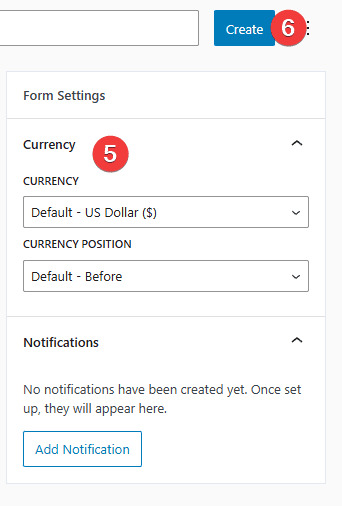
5. After adding and configuring all fields, you can change the form settings, such as the currency and whether it will be displayed before or after the price.
6. When all editing and customization are complete, don’t forget to save the form changes and publish it by pressing the Create button in the top right corner.
Step 2. Adding a Form to Your Rental Website
As you see, learning how to create a booking form in WordPress and actually creating one is an easy and quick process. It happens after you create and configure the visual calendar for your accommodation options. But how do you add it to the frontend of your WordPress website? First of all, it’s important to note that the WordPress booking form is associated with booking calendars. That’s why displaying a calendar also allows you to discover how to add booking system to WordPress on the same page, which is displayed when the booking happens. Let’s explore the details below.
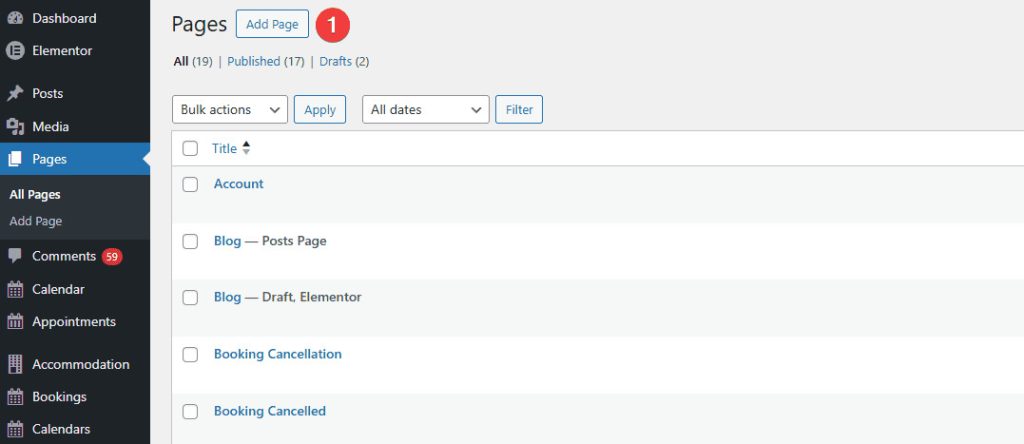
1. First, you need to create a page where your form will be displayed. To do that, go to the Pages tab in the WordPress dashboard and press “Add New Page”.
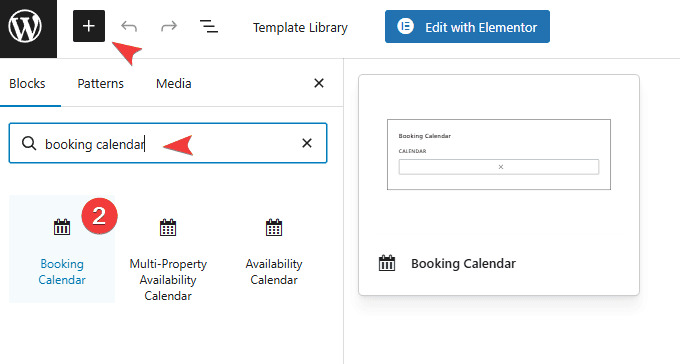
2. One of the easiest ways to add a form in Gutenberg is to use the Booking Calendar block supplied with the plugin. Simply look up the Booking Calendar in the block inserter (blue plus button in the top left of the Gutenberg editor) and select it to add it to your page.
3. When learning how to create a booking form in WordPress, you can also use the [mpbc_booking_calendar] shortcode to add the short-term rental calendar using any other plugin besides Gutenberg. You can read more on how to use shortcodes in the official plugin documentation.
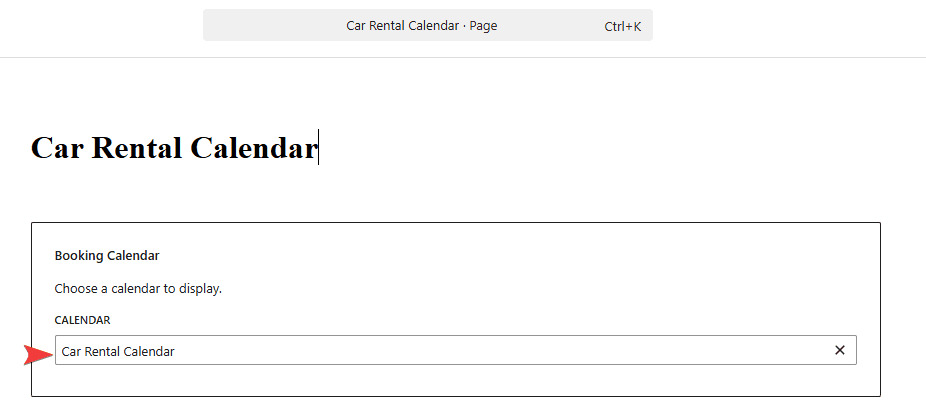
4. After adding the Gutenberg block, select the calendar for which you’ve created your booking form.
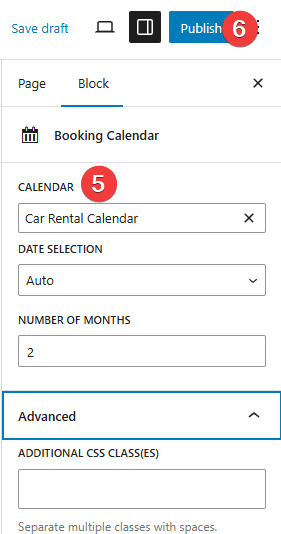
5. Using the sidebar on the right, you can configure how the calendar will be displayed. The available options include:
- Calendar selection;
- Date selection options (Auto, Range, Multiple, or Single);
- Number of displayed months.
6. Press “Publish” in the top right to make the page available so that your clients can access both the calendar and the form.
Accessing the Booking Form
When learning how to use the booking calendar in WordPress, it is necessary to note that the booking form is displayed only after a client books the date and the rented item. To do that, your users will need to:
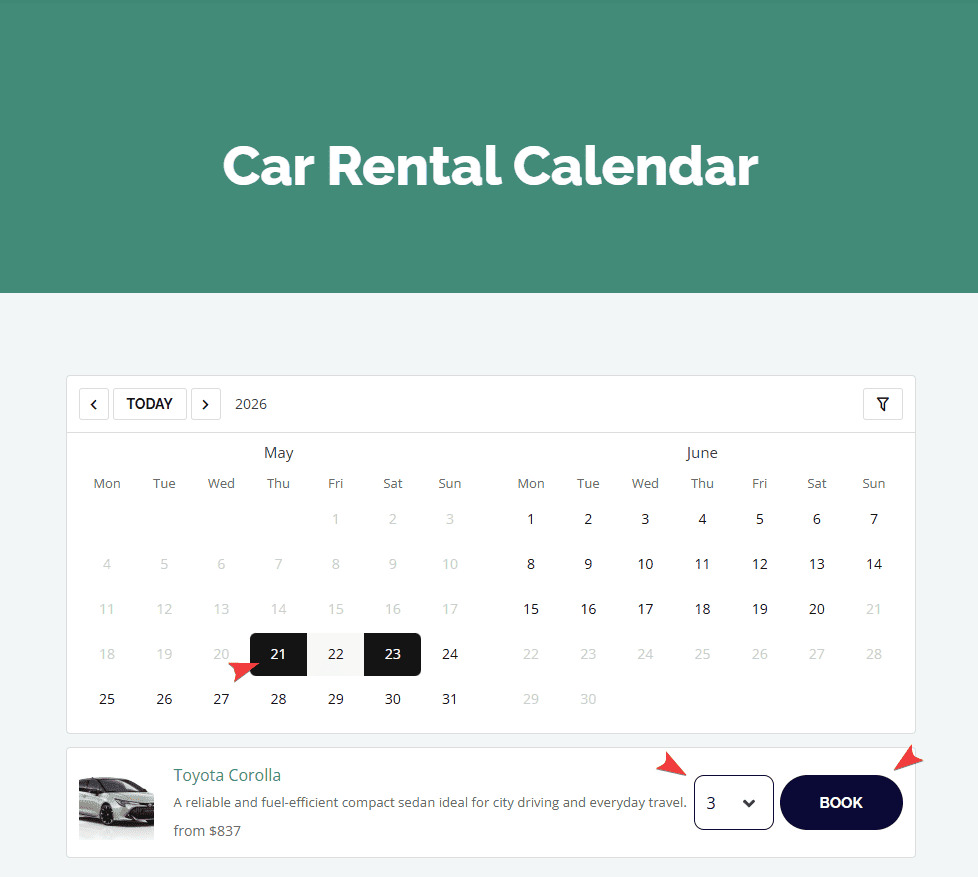
1. Open the published page where the calendar is displayed.
2. Select the available date, accommodation option, and/or timeslot.
3. Choose the item, its quantity, and press “Book”.
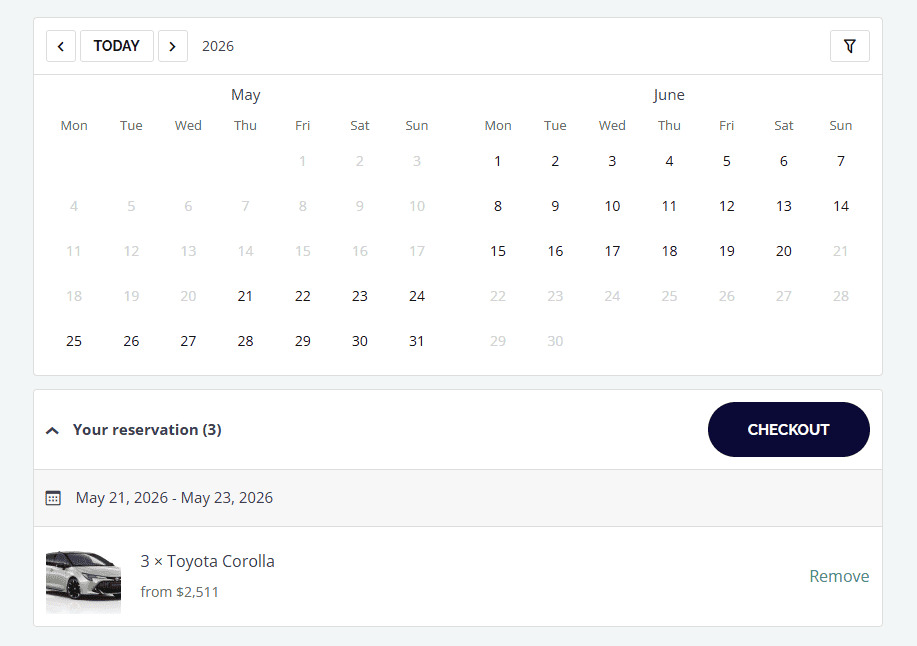
4. Check if the provided booking details are correct and press “Checkout”.
After this step, the form will be displayed where your customer will need to provide the necessary information and press “Book Now” to complete the booking process and discover how to create a booking form in WordPress.
More Advantages of the Booking Calendar Plugin for Your Business

As we mentioned above, Booking Calendar also has a selection of other notable features aside from the booking form builder and its integration with Gutenberg. Let’s take a quick look at some of them.
1. Visual calendar: One of the most prominent features that the WordPress booking form plugin provides is the visual management of available tours, accommodations or vacation rentals with the already mentioned 3 diverse booking modes. From nightly and daily to hourly modes, this calendar plugin offers a flexible solution for availability customization without being too complex. Besides, the plugin supports an unlimited number of calendars, allowing you to create as many as you need.
2. Inventory manager: Directly connected with the visual calendar is the inventory manager, built for smooth and simple control over rented items, their prices, and categories. Thanks to the integrated Bulk Edit feature, the inventory manager allows for easy visual editing of available booking options, while also supporting per timeslot availability editing in the Hourly booking mode.

3. Email notifications: While the two previous core features, alongside tools for learning how to create a booking form in WordPress, can surely add a lot to any rental website, they only help with management and data collection. When it comes to informing your clients, the email notification system supplied with the booking calendar WordPress plugin comes in really handy. Similar to the WordPress booking form described above, email notifications can be connected to any calendar you create with the plugin. Offering multiple event triggers and editable templates for various notification purposes, Booking Calendar truly provides all the essentials you may look for when using a rental booking plugin built.
4. Stripe integration: If you are looking for a WordPress booking form with payment to offer your clients to pay for rented items right away, the Stripe integration supplied with the plugin can really be useful. Being one of the popular and reliable payment gateways, Stripe supports dozens of payment methods and services, delivering quality possibilities for secure payments on WordPress hotel booking websites.
Conclusion

We hope this guide on how to create a booking form in WordPress helped you find an efficient and easy way to automate the collection of guest data on your website. Whether you’re intending to use MotoPress Booking Calendar or a similar plugin with an integrated form builder, your productivity and workflow will surely benefit from a streamlined hotel booking process. By reducing manual tasks, you can focus more on growing your business, while your site handles this key task automatically. Besides, it will give you other advantages:
- Time savings: Booking forms automate confirmations and data collection, decreasing the need for manual communication.
- Error reduction: Form plugins minimize risks of double bookings as well as help centralize all appointments and reservations in one accessible hotel booking form for WordPress or your STR business.
- Enhanced user experience: With integrated form builders of WordPress calendar booking plugin solutions, you can assist your visitors in booking quickly and easily without leaving your site.
- Better organization: Finally, thanks to booking form tools, you can store all customer and booking data in the booking calendar WordPress plugin. This makes even huge amounts of data easy to track and manage.