Are you familiar with the MotoPress Events Calendar plugin? You might have heard about booking plugins from this company. But this relatively new plugin deals with events. We were drawn to its WordPress event management strategy. So, we’ve decided to test how effortless it is to manage your schedule full of classes, workshops, meetings, and other events. In this review, you’ll find many details about this WordPress events calendar plugin, its features, and cost!
Also, there is another question to raise – how can it compete with already established plugins in this niche? Does it add something fresh & revolutionary to the conventional WordPress event management process, as stated on its main page?
MotoPress Events Calendar: In-Depth Review
The WordPress events calendar space is packed with plugins, and many of them have been around for years. MotoPress Events Calendar doesn’t try to outdo them by cramming in more and more features. Instead, it aims to make managing events feel simpler and far less time-consuming.
To see whether it actually delivers on that idea, I tested the plugin from both the administrator’s and the visitor’s perspective.
But before diving into the features, let’s start with the nitty-gritty.
What Is MotoPress Events Calendar? My First Impressions
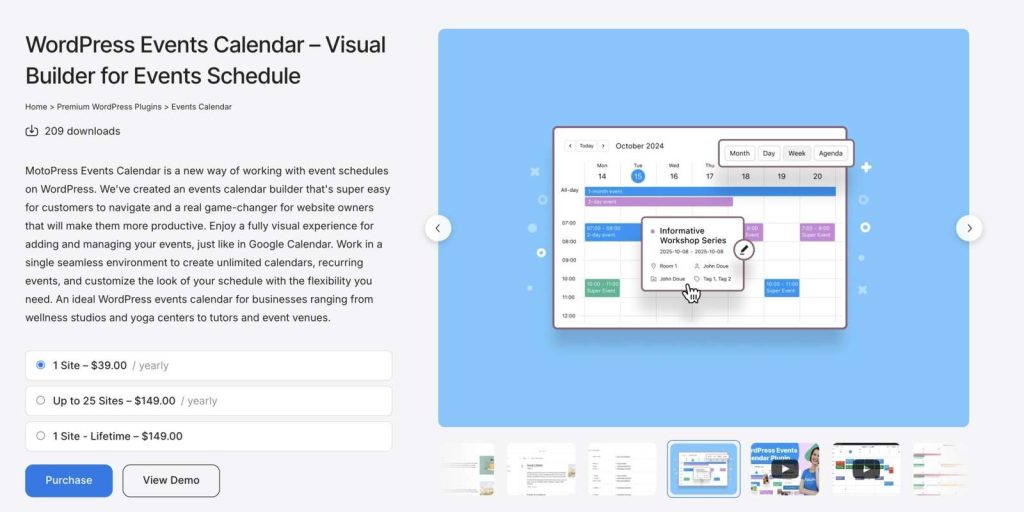
MotoPress Events Calendar is a premium WordPress plugin built to simplify the way you create and manage event schedules.
It covers everything you’d expect from a modern event manager WordPress plugin. Almost everything happens from one visual workspace, so you’re not constantly jumping between event settings, preview pages, and calendar screens. It feels much closer to using Google Calendar than a traditional WordPress plugin, and that’s probably what stood out to me the most.
Why Does This WordPress Event Plugin Feel Different?
On paper, MotoPress Events Calendar checks many of the same boxes as other event plugins. The difference became obvious once I started creating events.
With many WordPress plugins, you spend most of your time filling out settings and only switch to the calendar afterward to see whether everything looks right. Here, it’s almost the opposite. You’re working directly in the calendar, adding, moving, and editing events while seeing the schedule take shape.
That might not sound revolutionary, but in practice it changes the entire workflow. Thanks to this approach in the WordPress event calendar plugin, you can quickly notice gaps in your calendar, overlapping events, or recurring patterns even if you don’t switch between different admin pages.
Which Businesses Is It Built For?

At first glance, I made a conclusion that it’s best suited for websites with frequently updated schedules.
The first examples that come to my mind are fitness studios, schools, or training centers. Also, churches and nonprofit organizations could manage worship services, Bible studies, youth meetings, and community events in separate calendars.
The plugin is just as practical for conference venues, coworking spaces, museums, workshops, festivals, and other organizations with busy event calendars that change throughout the year.
In short, if your website depends on an up-to-date schedule, this visual approach feels like a natural fit.
Main Event Plugin WordPress Features: Do They Improve Everyday Event Management?
The next question is how features of the MotoPress Events Calendar plugin for WordPress work together and power up its clean interface.
Visual Calendar Builder
The first feature that caught my attention was the visual calendar builder. It’s also the one that shapes almost everything else in the WordPress Events Calendar plugin.
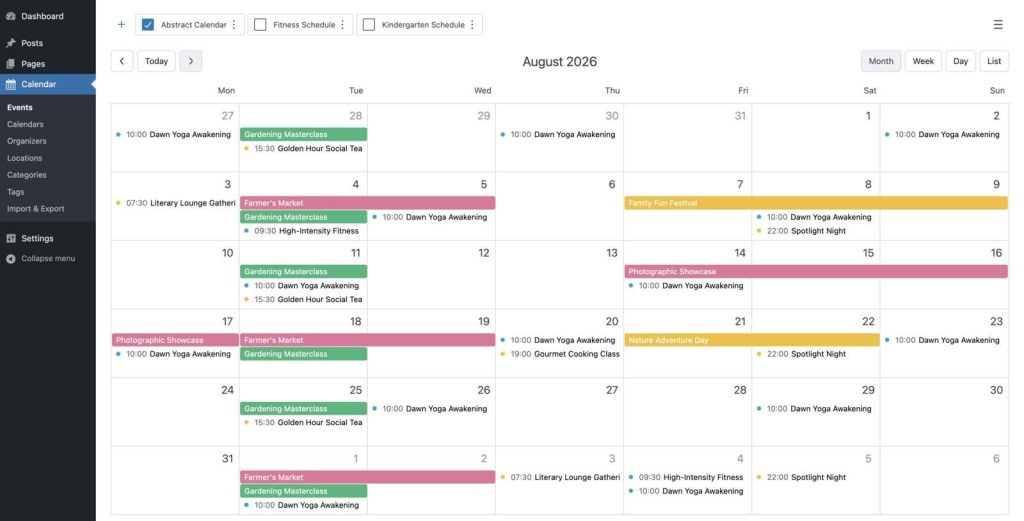
Instead of opening the classic WordPress editor every time you want to add an event, you work directly inside the calendar. Need a one-hour meeting? Click the time slot. Planning a multi-day event? Just drag across the dates.
Unlimited Calendars
What if a fitness studio could keep yoga, pilates, and personal training sessions in separate calendars? Or create calendars for studios in different locations? The same with venues, churches, coworking spaces, and other industries.
That’s where MotoPress handles things quite well. It lets you add as many calendars as you need and organize them the way it makes the most sense for your business.
Detailed Event Information
Naturally, every event needs more than just a name and a date. In practice, you’ll probably want to add extra details so visitors can quickly understand what the event is about.
MotoPress lets you include:
- descriptions;
- featured images;
- colors;
- organizers;
- locations;
- categories;
- tags;
- custom links.
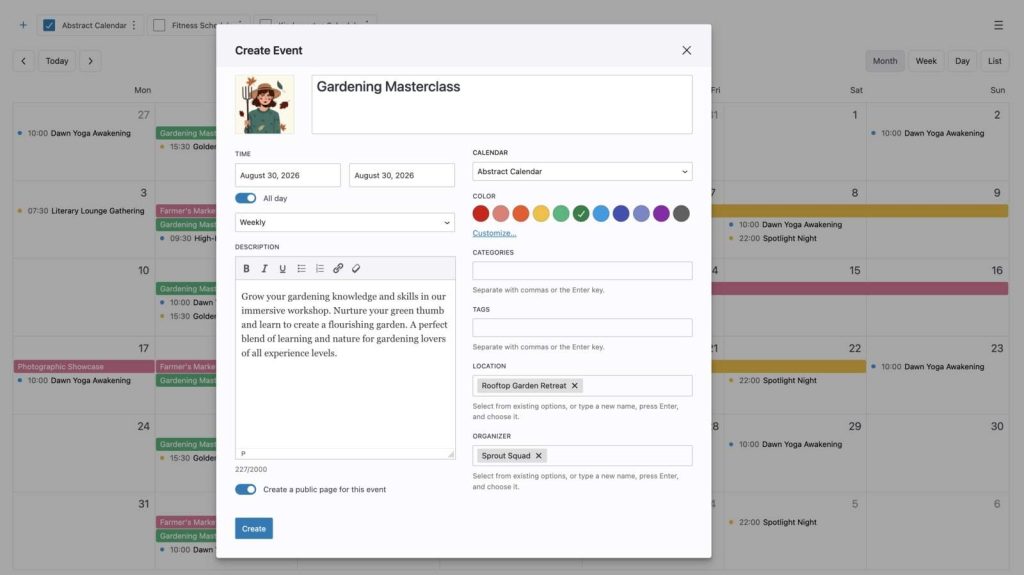
One thing I appreciated while testing is that if you realize something doesn’t exist yet, you can add it right there while editing the event.
Color coding seems to be quite a simple feature, but it goes a long way toward keeping a busy calendar organized.
Hourly, All-Day, and Multi-Day Events
One thing I quickly noticed while testing the demo calendar is that MotoPress doesn’t assume every event follows the same format. You can create hourly events, all-day activities, or multi-day events using the same workflow. You don’t need to learn another tool or walk through tons of tutorials for different event types.
Then, I wondered how the plugin handles multiple sessions run at the same time, such as classes, workshops, conferences, or meetings. I found out that you can schedule them without any workarounds.
Recurring Events
If your schedule includes repeating events, this is probably one of the areas you’ll care about most. Thankfully, you can set events to repeat daily, weekly, monthly, yearly, on weekdays only, or follow a fully custom recurrence pattern. On top of that, it’s easy to decide when the series should stop, either after a certain number of occurrences or on a specific date.
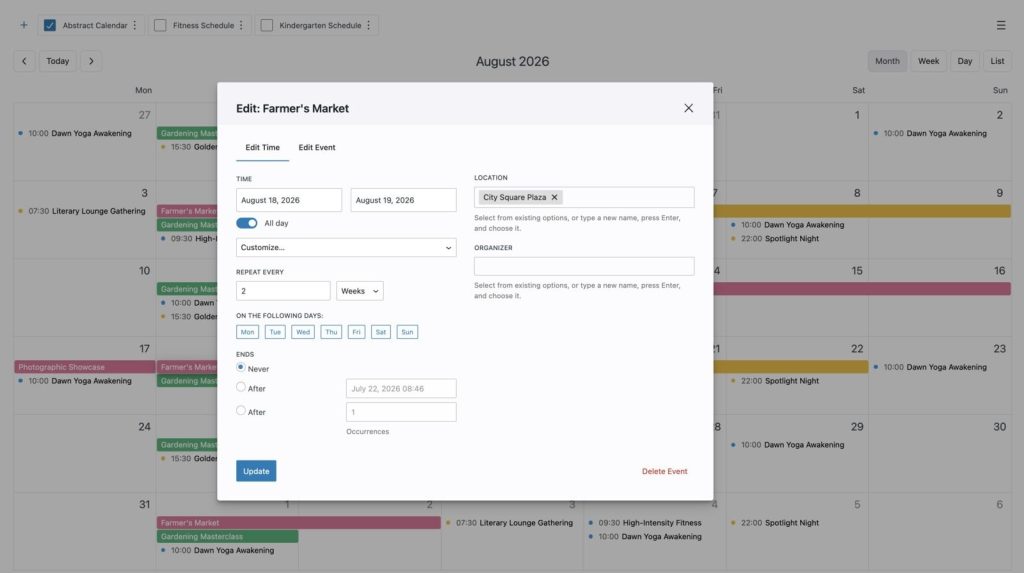
Anyone who’s managed calendars before knows that schedules change all the time, so editing recurring events is just as important as creating them.
Let’s imagine that you’re running the same language class every Monday morning, Wednesday afternoon, and Friday evening. Instead of creating three separate events with the same title, description, and details, you can keep everything under a single event and simply add additional schedules.
Multiple Events Calendar Views
How can visitors view calendars with added events? MotoPress Events Calendar gives you four main calendar layouts to choose from:
- Month
- Week
- Day
- List
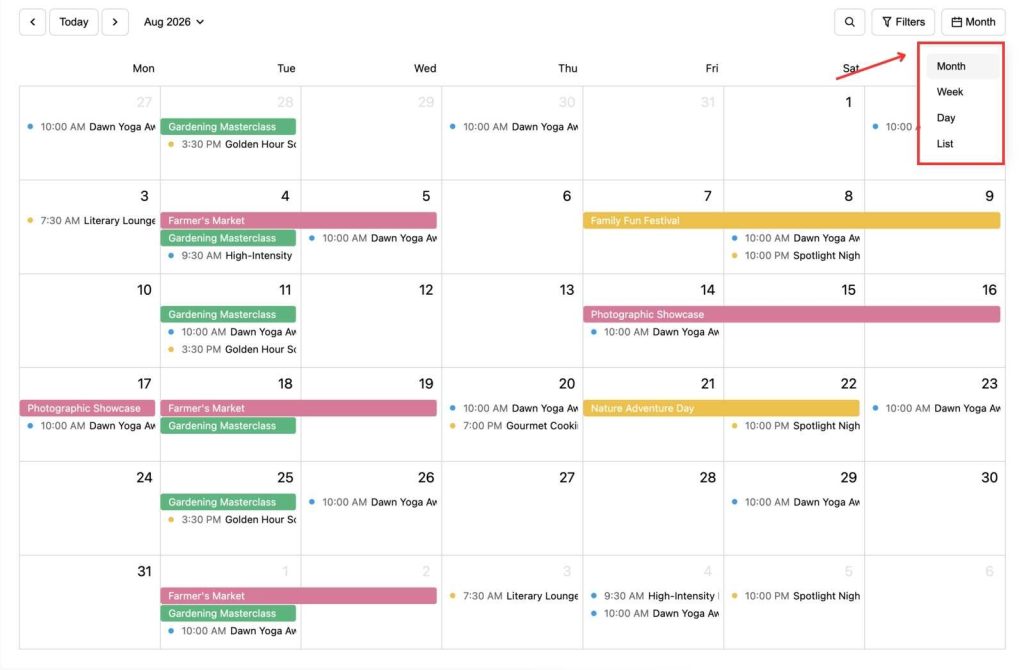
You can set any of these as the default view and, if you like, let visitors switch between them depending on how they prefer to browse the schedule.
Event Lists and Compact Schedule Views
A full calendar isn’t always the right choice. Sometimes you just want to highlight a few upcoming events on your homepage or add a simple schedule to a landing page.
That’s why I was glad to see MotoPress includes a couple of additional display options alongside the standard calendar views.
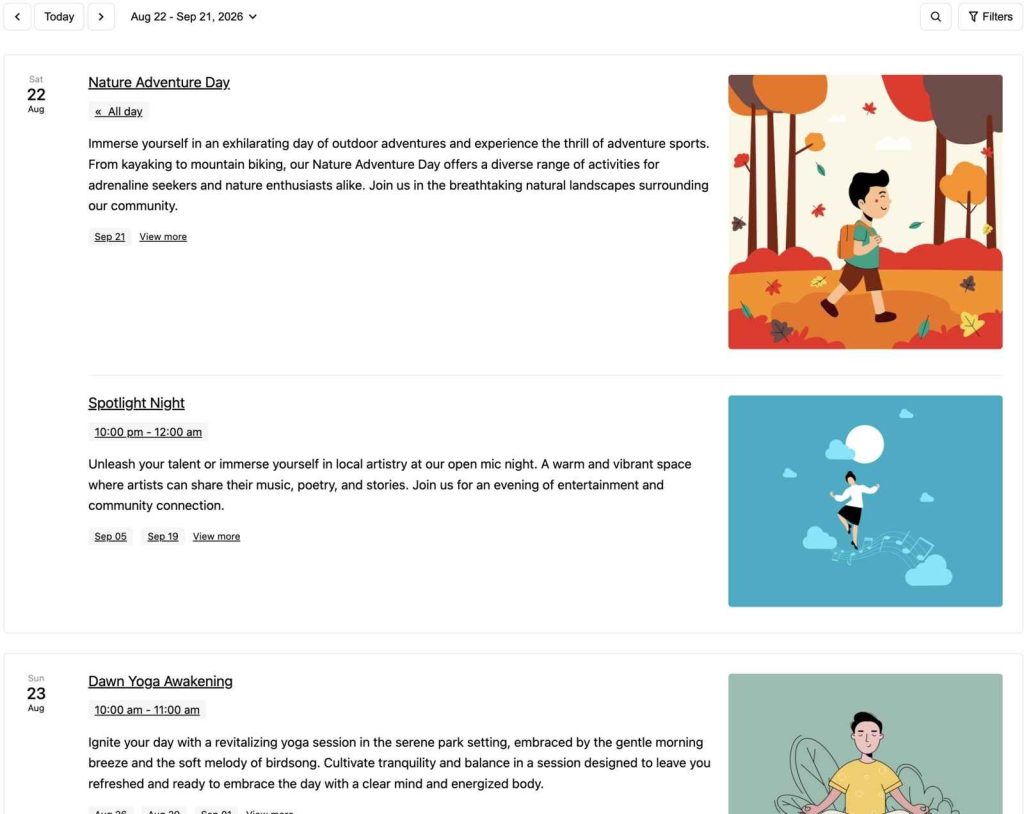
On the one hand, the Events List block presents events as clean, informative cards with titles, featured images, descriptions, and upcoming dates.
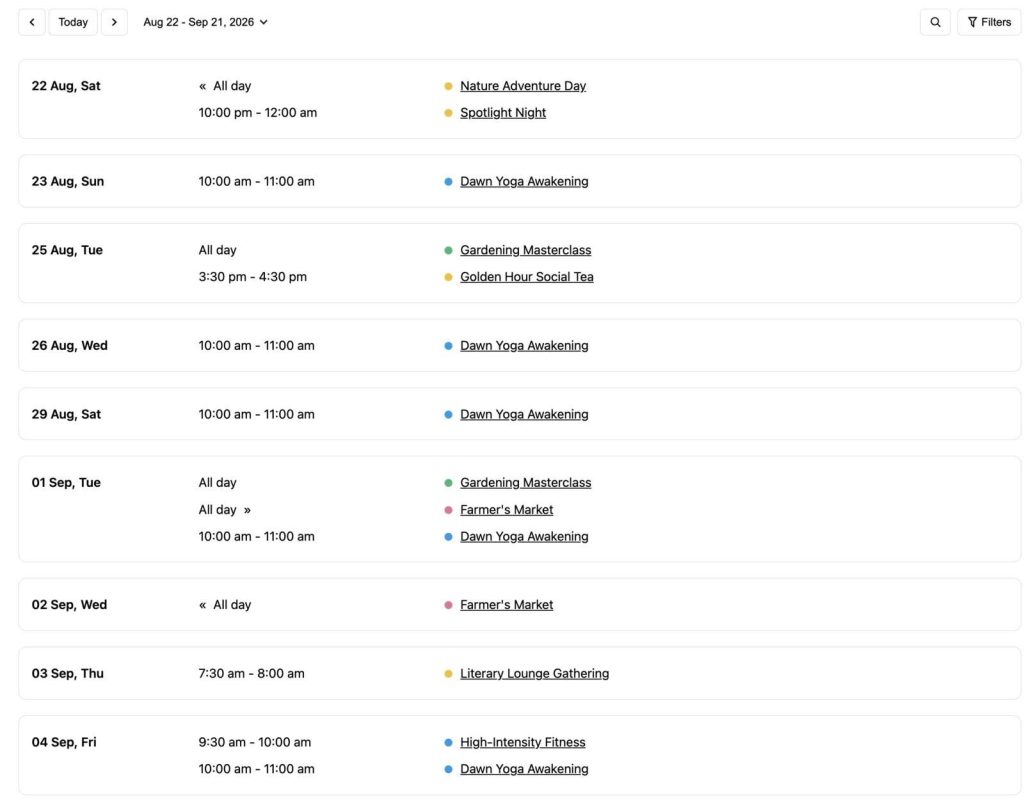
On the other hand, there’s also the Events Schedule block to display a simple chronological timetable.
Filtering and Search Tools
Without search and filtering tools, even a well-organized schedule can feel like looking for a needle in a haystack.
For this navigation-related case, MotoPress offers filters for calendars, categories, tags, organizers, locations, weekdays, and individual events. Visitors can also search by event name or location.
One more detail is how the search and filters can be implemented. They’re also available as separate Gutenberg blocks that connect to the calendar behind the scenes.
Individual Event Pages
Sometimes a calendar entry isn’t enough. Visitors may want more details before deciding to attend, so it’s useful to have a dedicated page for each event.
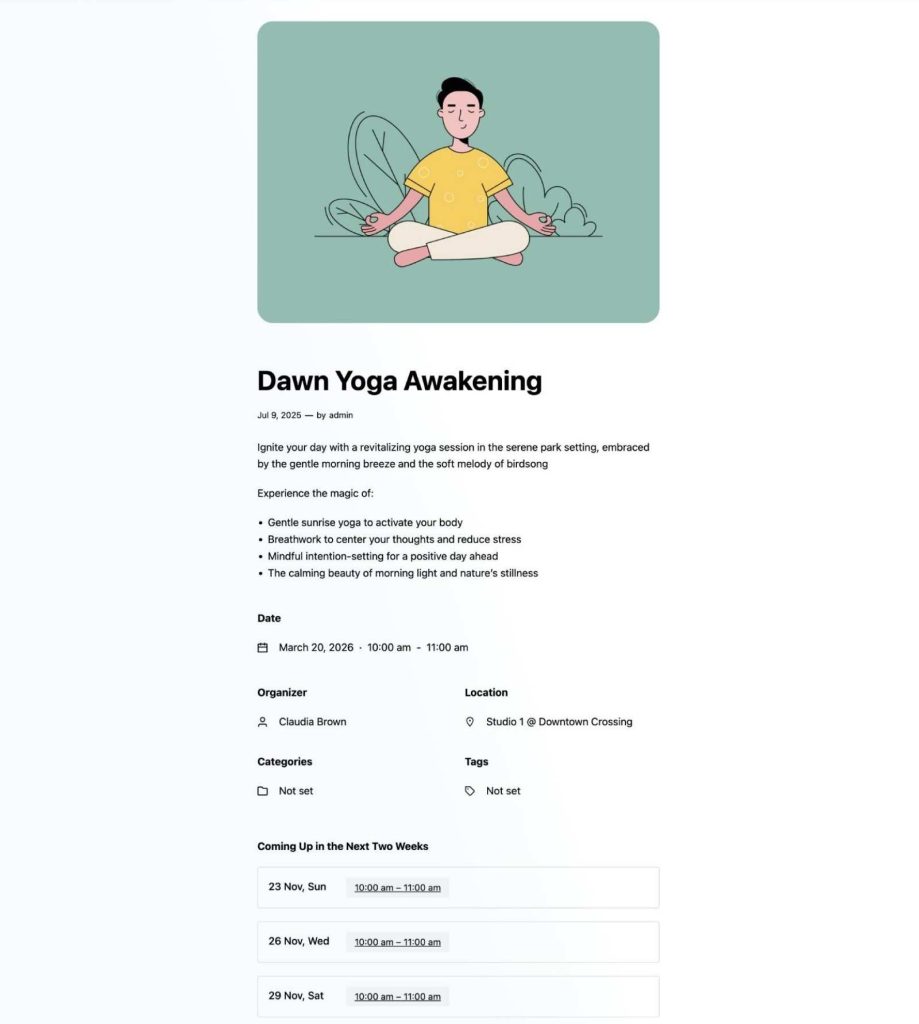
MotoPress Events Calendar can generate those pages automatically. Depending on what information you add, an event page can include:
- the date and time;
- the location;
- the organizer;
- categories and tags;
- upcoming occurrences for recurring events.
Since everything is built with Gutenberg blocks, you can customize the layout just like you would any other WordPress page.
If you don’t need an internal event page, there’s another option. You can link an event directly to an external URL. For example, it may lead visitors to a third-party booking system, ticketing platform, livestream, or online registration form.
Import and Export Through iCalendar
Another feature that caught my attention is support for the iCalendar (.ics) format. Since it’s supported by Google Calendar, Apple Calendar, Outlook, and many other calendar applications, you can exchange events from your calendars with other platforms.
The only thing I’d like to mention here is that imports and exports are performed manually. I guess it might fit cases when you’re migrating an existing calendar, creating backups, or importing events in bulk.
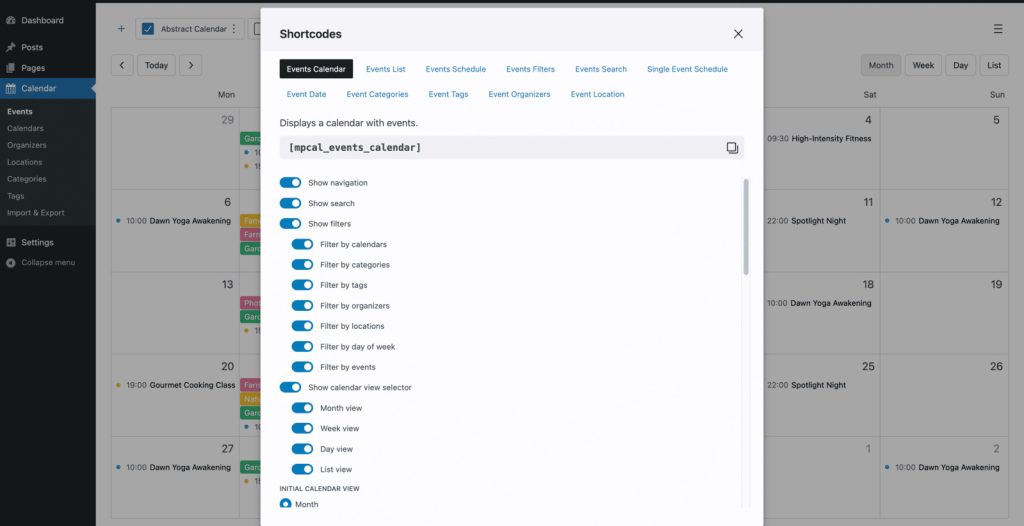
Gutenberg Blocks and Shortcode Support
The next feature that can’t be omitted when reviewing a WordPress event schedule plugin is how it handles displaying the schedule on your website. MotoPress is clearly designed with the WordPress Block Editor in mind.
Throughout my testing, I was able to build calendars, event lists, schedules, and even individual event pages using the plugin’s Gutenberg blocks. Since each element is available as a separate block, putting together a custom event page feels much like building any other WordPress page.
If you’re not using Gutenberg, MotoPress Events Calendar comes with comprehensive shortcode support, but what I liked is that you don’t have to memorize shortcode parameters or write them by hand. The plugin includes a visual shortcode builder.
Working Inside MotoPress Events Calendar: We Tested Admin and User Experience
To get a better sense of how MotoPress Events Calendar performs in real life, I wanted to look beyond the specifications.
Walking through the Admin Dashboard
1. Getting Started
Once the plugin is activated, you’ll see a new Calendar menu in the WordPress dashboard.
The only thing you need to do first is create a calendar. I liked that there wasn’t a steep learning curve here.
2. Creating Your First Calendar
Head to Calendar > Events, click the + button, give your calendar a name, and you’re ready to go.
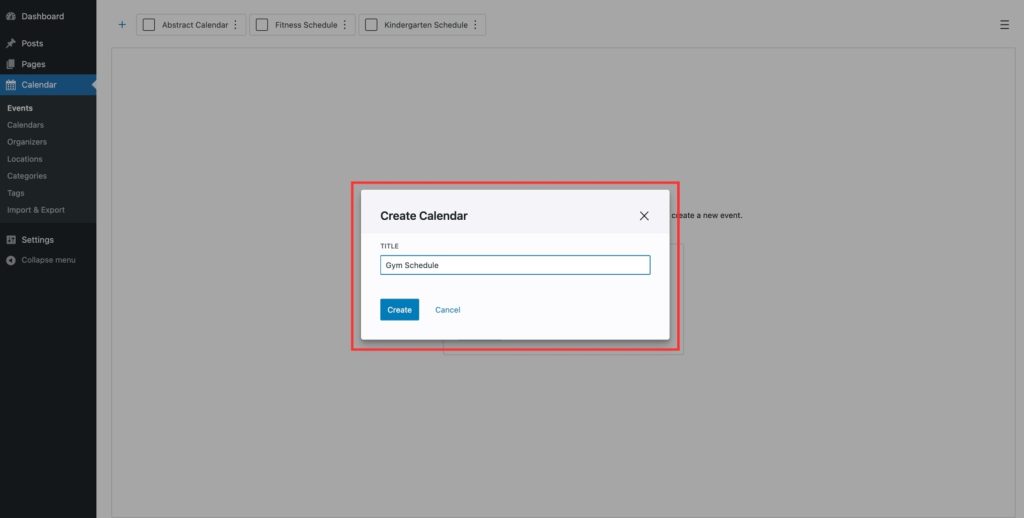
There’s really not much to learn here, and honestly, that’s one of the plugin’s strengths.
3. Adding Events Directly to the Calendar
This is the feature that convinced me MotoPress Events Calendar is built differently from many other WordPress event plugins.
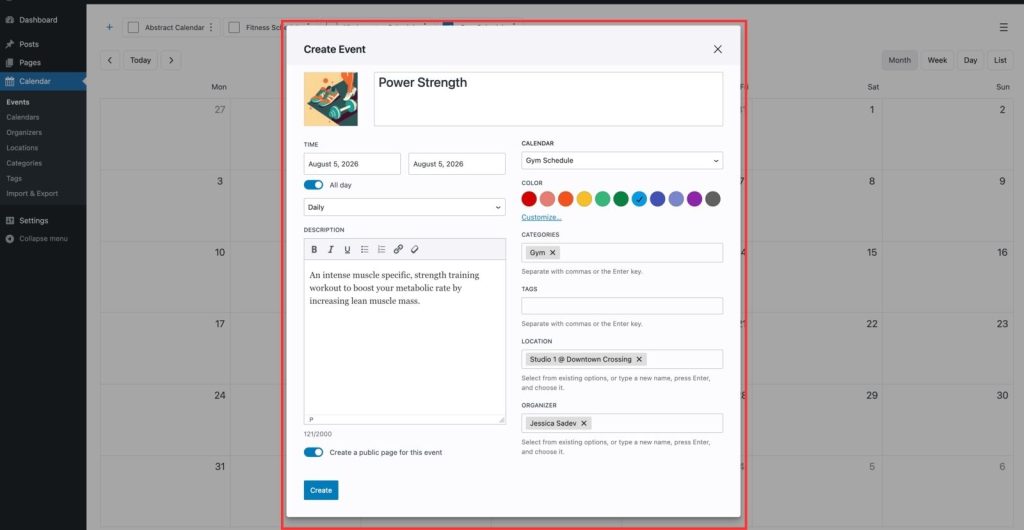
Instead of clicking Add New, filling out a long form, saving it, and only then checking where the event appears, you begin directly from the calendar itself.
Exactly how you create an event depends on the view you’re using:
- Month view: click a date or drag across several days to create a multi-day event.
- Week view: drag across the desired time slot.
- Day view: select the hours directly from the daily schedule.
After entering the event title, a pop-up opens with all the additional settings you might need, including:
- Event description;
- Featured image;
- Event color;
- Organizer;
- Location;
- Categories and tags;
- Recurrence rules;
- Public event page or external URL.
4. Editing Event Details and Individual Time Slots
Edit Time is used for information that’s specific to a particular occurrence: date, time, recurrence settings, location, or organizer.
Edit Event contains the information shared by every occurrence in the series: event title, description, featured image, colors, and categories.
5. Displaying the Calendar on Your Website
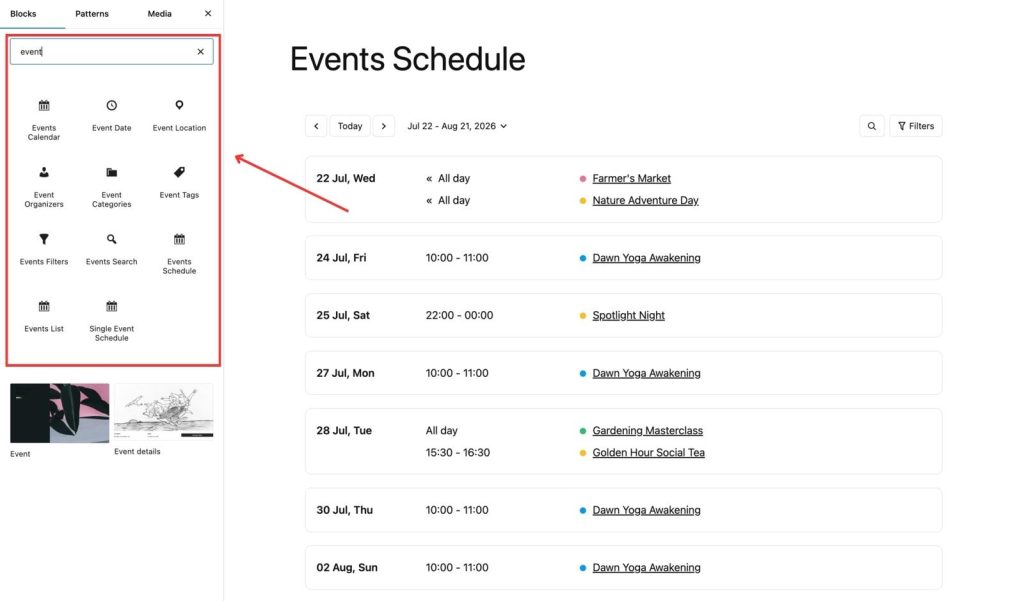
Publishing schedules with the MotoPress WordPress Events Calendar plugin involves dedicated blocks for the WordPress Block Editor:
- Events Calendar;
- Events List;
- Events Schedule;
- Events Filters;
- Events Search.
Each block has its own settings, so you can tailor the calendar to match the page you’re building.
What Does Visitor Experience Look Like?
A smooth admin experience is important, but it’s only half the story. After all, the people who visit your website are the ones who actually use the calendar.
So, after testing the frontend as well, I wanted to see whether the same simplicity carries over for visitors.
1. Browsing the Calendar
Have you enabled the month, week, day, or list view? Visitors can select the preferred one among the available options.
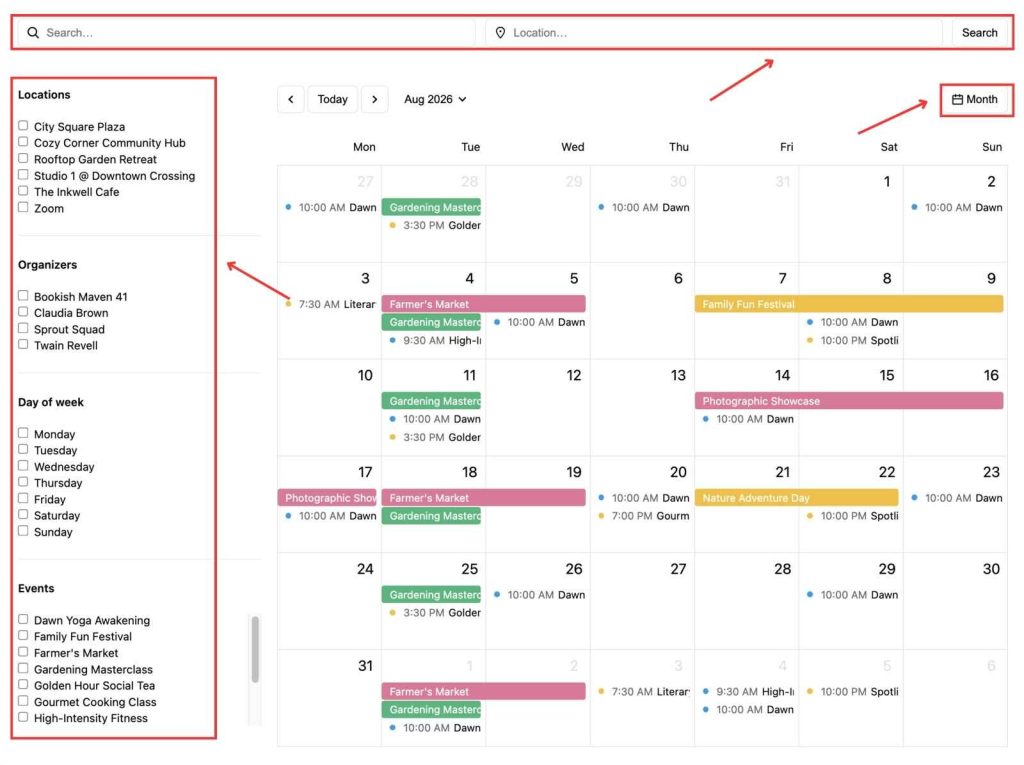
I like this approach because different websites naturally have different needs. For example, a conference or festival website usually benefits from a monthly overview so people can see everything at once.
2. Searching and Filtering Events
One design choice I mentioned earlier is worth highlighting again because it has a noticeable impact on the navigation. I mean search bars and filters that you can place wherever they fit your page.
3. Viewing Event Details
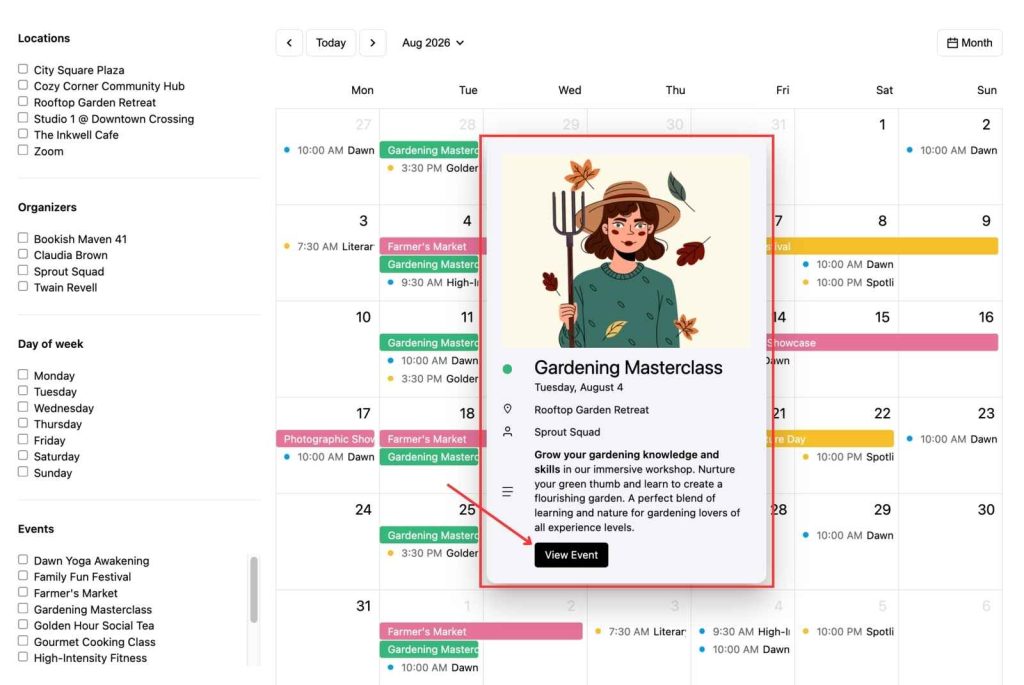
When I click on an event, I see the additional information. Also, there is a link that directs to a dedicated event page, external booking system, ticketing platform, registration form, or livestream page.
4. Using the Calendar on Mobile
Last but not least, I wanted to check out how everything works on a smaller screen because some recent studies have shown that many website visitors search for events on their mobile devices.
As seen from the testing results, visitors can still switch between available views, browse upcoming events, search, and apply filters.
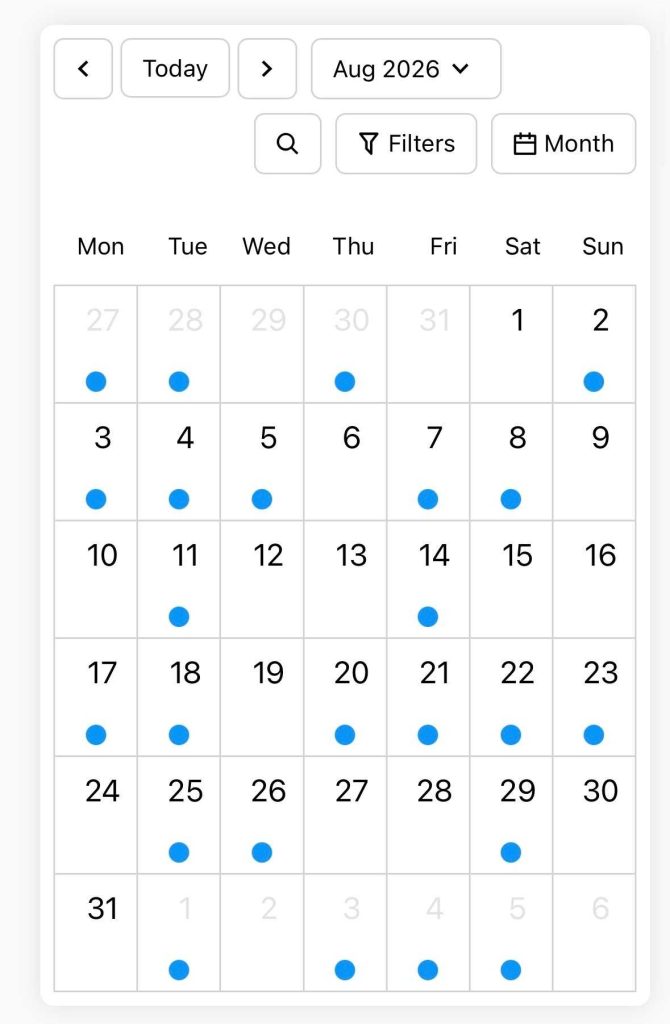
Naturally, a busy weekly timetable requires a bit more scrolling on a phone than it does on a desktop.
WordPress Events Calendar Plugin Pricing
MotoPress Events Calendar is available as a premium plugin with three licensing options:
| License | Price |
|---|---|
| 1 Site (Annual) | $39/year |
| Up to 25 Sites (Annual) | $149/year |
| 1 Site (Lifetime) | $149 |
| Free Trial | Yes, 7 days |
All of the core features are available without extra paid add-ons.
The only thing worth keeping in mind is that there’s no free version available in the WordPress Plugin Directory. However, the plugin developers suggest testing the waters via the 7-day free trial.
MotoPress Events Calendar: Pros & Cons
After spending time testing MotoPress Events Calendar, one thing became clear fairly quickly: the plugin isn’t trying to compete by offering the longest feature list to be called ‘best events calendar plugin for WordPress’. For me, the real value came from how easy the plugin made everyday event management.
What I Liked
- Compared to a traditional WordPress timetable plugin, it offers a workflow that’s much closer to Google Calendar than the classic WordPress editing experience.
- Whether you need to create a single occurrence or recurring events, the plugin gives you the flexibility to do so.
- I like that you’re not limited to a single schedule. You can organize events into separate calendars for different locations, departments, instructors, or audiences.
- It’s easy to present events in a way that suits both your website and your visitors.
- Search and filtering tools boost navigation even if your schedule is full of different events.
- Every event can have its own dedicated page, or you can send visitors directly to an external booking or registration system if that’s where the action happens.
- Within a few minutes, I had my first calendar created and was already adding events.
- Considering everything that’s included in the core plugin, I think the pricing offers good value for businesses that actively manage their schedules.
What Could Be Better
- I’ve mentioned that importing and exporting via iCalendar is available out of the box. However, it’s a manual process rather than continuous syncing.
- Events are displayed using the website’s configured timezone with no visitor timezone conversion.
- There is no free version available that you can download from the WordPress repository.
Our Verdict: Can We Call It the Best WordPress Events Calendar Plugin?
Although MotoPress Events Calendar is still a relatively new name compared to long-established competitors, it feels like one of those plugins that deserves far more attention.
After spending some time with it, I think its biggest strength is the way the whole plugin feels to use. It covers features I’d expect from a modern WordPress event plugin, but the calendar-first workflow makes it stand out from the crowd of well-known names in this niche.
Summing up this review, I can say that if you’re looking for a WordPress event calendar plugin that’s modern, intuitive, and genuinely enjoyable to work with, MotoPress Events Calendar is definitely worth considering!
FAQ
In terms of workflow, yes. The plugin allows you to create and manage events directly within a visual calendar, making the experience feel similar to popular calendar applications. However, it’s designed specifically for publishing event schedules on WordPress websites rather than replacing Google Calendar.
When creating or editing an event, simply choose a recurrence pattern such as daily, weekly, monthly, yearly, weekdays, or a custom schedule.
Yes. MotoPress Events Calendar lets you create unlimited calendars, organize events into separate schedules, and display calendars individually or combine them into one timetable.
No. MotoPress Events Calendar is a premium-only plugin. It starts at $39 per year for a single website, with additional licenses available for up to 25 websites and a lifetime plan for one site.
Yes. Instead of using the default event page, you can configure an event to redirect visitors to any custom URL, making it easy to connect external booking systems, ticketing platforms, registration forms, or livestream pages.
While dedicated Elementor widgets are still being developed, the plugin can already be embedded into Elementor pages using its shortcode support.
Yes. MotoPress supports manual import and export through the standard iCalendar (.ics) format, allowing you to transfer events between Google Calendar and your WordPress website.