Looking for best video conference WordPress plugin? From easy-to-configure livestreams to improved user experience for your clients, having an integrated video conferencing tool within your website is a must-have feature. In today’s article, we’ll take a look at one of the ways to obtain such functionality using the Zoom & Google Meet conferencing add-on for the Appointment Booking plugin. From learning more about its advantages to supporting individual and group video calls, below you’ll discover how this solution can help your business in no time.
What is the Appointment Booking Video Conferencing Add-on?
Before we dive into the advantages of the WordPress conference plugin, let’s learn more about it first.
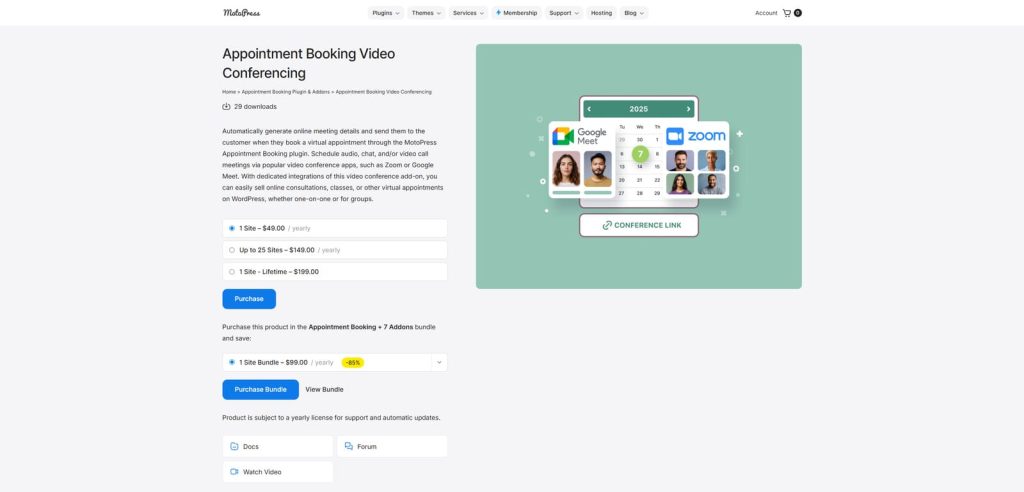
Designed for the Appointment Booking plugin by MotoPress, the video conference WordPress plugin makes it simple for you to enhance the default scheduling functionality with video meetings. Perfect for online appointments, the plugin supports two popular video conferencing platforms – Zoom and Google Meet. It is fully compatible with both one-on-one and group appointment types, making it a great pick for online education and corporate websites.
As one of the numerous extensions for Appointment Booking, the WordPress video conferencing plugin is built to accommodate its default functionality to improve it further. For example, as the default plugin supports employee management, the extension gives you an opportunity to manage multiple hosts for the video conference. As a result, your employees can use their Zoom and Google accounts to organize video meetings. Moreover, just like the plugin itself, the extension is easy to use and customize where necessary.
| Name | Developer | Price | Best for |
|---|---|---|---|
| Appointment Booking Video Conferencing | MotoPress | From $49/year | Automated video conferencing for appointments |
Top Features of the Video Conference WordPress Plugin

Now that we know a little more about the video conference WordPress plugin, let’s explore its main features and how it can help your business. Obviously, one of the core advantages is automating the process of organizing a video call online based on your clients’ appointment data. Moreover, the Zoom video conferencing WordPress plugin makes it easy for users with any level of expertise in WordPress to schedule and manage appointments with video calls in a few simple steps. Below, we’ll take a closer look at what exactly the webinar plugin for WordPress can offer, including:
- Zoom appointment bookings;
- Online calls via Google Meet;
- Support of one-on-one and group scheduling;
- Meeting links & conference tracking logs;
- Meeting management for multiple hosts.
Zoom Online Conferences
One of the core features that the WordPress video conferencing plugin provides is connected with Zoom. With the help of this extension, you can easily manage video conferencing with the Zoom WordPress plugin right after confirming an appointment, manually or automatically. The video meeting is assigned to the account of a booked employee or a site admin, depending on the active settings. This allows for more flexibility in terms of a person responsible for conducting a video conference, thanks to the WordPress Zoom integration.
Google Meet Calls
Another core feature that the WordPress conference plugin provides is designed for Google Meet video calls. It integrates the planned conferences with confirmed appointments, making the plugin suitable for online counseling, webinars, meetups, and other events. Additionally, the video conference WordPress plugin supports automatic generation of online meeting details, allowing you to organize conferences quickly without having to do everything manually. Integrating this functionality into your website gives the following advantages:
- Automatic creation of Google Meet links;
- Reliable and secure video meetings;
- Easy access for confirmed participants;
- Seamless integration with Google accounts and calendars;
- Streamlined workflow for booking management.
1-on-1 & Group Bookings

The core plugin supports two types of bookings – individual and group ones. This allows for more diverse planning, especially when it comes to video conferencing. When creating a meeting link in Zoom or Google Meet using the WordPress video conference plugin, your clients get a unique link for one-on-one calls. Note that if you plan to have a group meeting, the link will be shared among all participants. This is true for both supported platforms, so that attendees can join the same session that the video conferencing plugin for WordPress creates.
Meeting Links & Tracking Logs
As one of the core features of Appointment Booking, the video conference WordPress plugin also supports email notifications. With this feature, you can not just inform your clients of upcoming video meetings but also include necessary details and personalized reminders if necessary. This feature can help you with:
- Timely reminders for conference participants;
- Easy access to meeting links;
- Clear communication of meeting details;
- Better organization for hosts and event attendees.
Moreover, the WordPress video consultation plugin helps with logging various meeting details. This is useful if you need to know more about who hosted or scheduled the meeting. Additionally, this feature shows the meeting link and its ID to help you get more information about the appointment. Besides, by providing these details right in the dashboard, you save time since you don’t need to keep multiple tabs open to gather all necessary information manually.
Multiple Hosts

The WordPress video conferencing plugin allows employees to easily manage and host meetings using their Google and Zoom accounts. For example, with Appointment Booking, you can create separate accounts for your employees to be meeting hosts. By using the available integrations of the video conference WordPress plugin, your team members will easily manage the scheduled video meetings and events without you having to control every aspect of them. Note that to manage multiple hosts for Zoom calls, you’ll need to have at least a Professional account to enable co-hosting.
Getting Started with Video Conferencing WordPress Plugin
Now that we know more about not just the video conferencing plugin for WordPress but also its core features, let’s explore how it needs to be configured for video call scheduling to work properly with both Zoom and WordPress Google Meet integrations. The process takes a few steps to complete, making it easy even for beginner-level users of WordPress.
Step 1. Installing and Activating the WordPress Video Conferencing Plugin
To have video conferencing functionality integrated with your website, you’ll need:
- Install and activate the Appointment Booking plugin and its Video Conferencing add-on in the “Plugins” tab of your WordPress dashboard.
- Register accounts for Google and Zoom to integrate the platform capabilities with your website later, using the video conference WordPress plugin.
Step 2. Connecting to Zoom
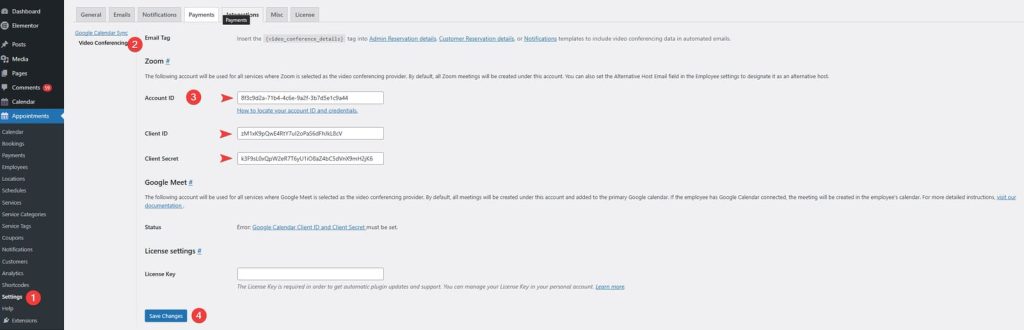
After preparing what’s required in the previous step, let’s connect both platforms to the add-on to enable support for video conferencing. We’ll start with WordPress Zoom setup.
- Navigate to the Appointments – Settings tab of the plugin in the dashboard.
- Select the Integrations tab and switch to Video Conferencing.
- Here, you’ll need to provide the Account ID, Client ID, and Client Secret for the Zoom WordPress plugin that you can get after creating an app in Zoom Marketplace and getting its credentials. Check the guide in the WordPress Video Conferencing plugin documentation to know more.
- Press Save Changes at the bottom of the page after inserting the necessary Zoom credentials into the interface of the video conference WordPress plugin.
Step 3. Connecting to Google Meet
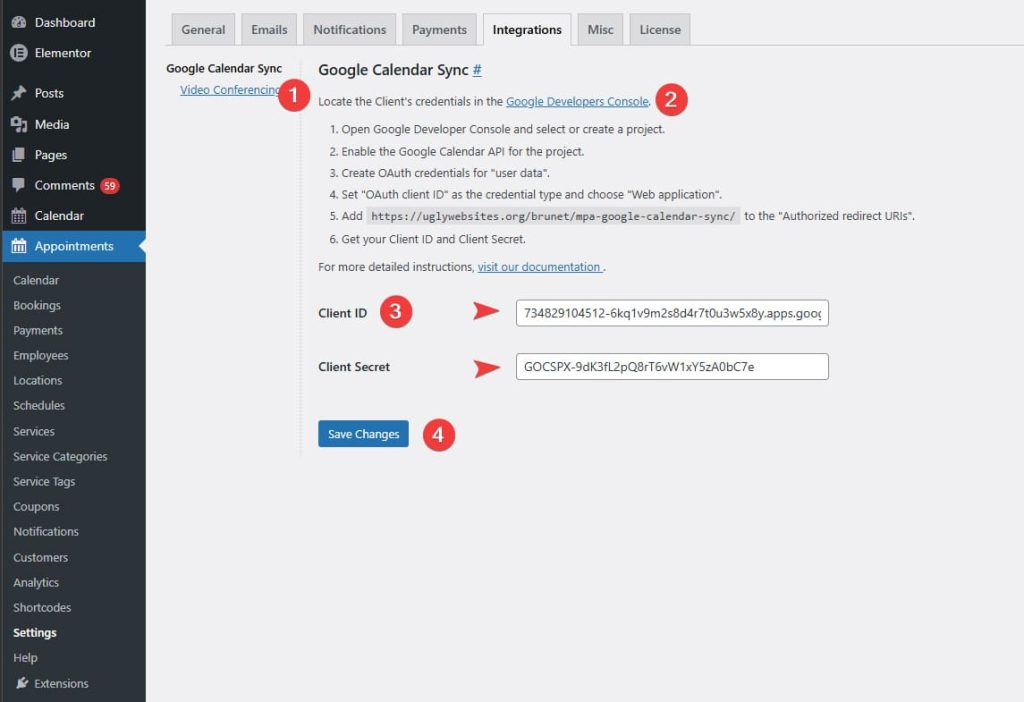
When connecting to Google Meet, you’ll need to provide credentials in a similar way you did for Zoom. This also requires creating an app in a few steps, but this time you’ll need to use Google’s built-in tools to enable the Google Meet WordPress integration.
- Navigate to the Google Calendar Sync on the Integrations tab in plugin settings.
- Using the Google Developer Console, create a new project and follow the steps in the detailed Google Calendar sync guide to get Client ID and Client Secret.
- Provide the obtained credentials in the specific fields on the Settings page of the Google Meet WordPress plugin.
- Press “Save Changes” to connect your website to Google Calendar and Google Meet.
Step 4. Enable Video Conferencing for Services
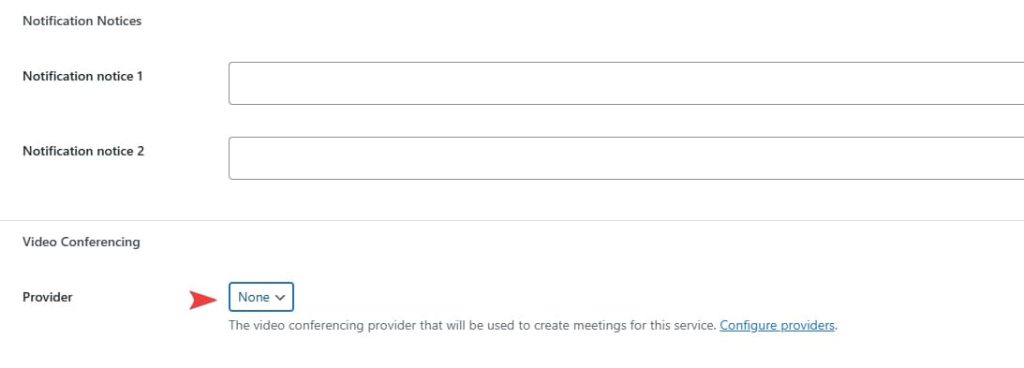
After configuring the video conference WordPress plugin and connecting it to the required video conferencing platforms, it’s time to enable the WordPress Google Meet and Zoom integration for Appointment Booking services.
- Open the Services tab in the dashboard of the Zoom plugin for WordPress.
- Press the Add New Service button at the top of the page or choose an existing one and press Edit.
- On a newly opened Gutenberg editor page, scroll down until you see the Video Conferencing section. Here you can choose one of two available providers in the dropdown – Google Meet or Zoom. Note that they will only appear if you’ve already connected each of them.
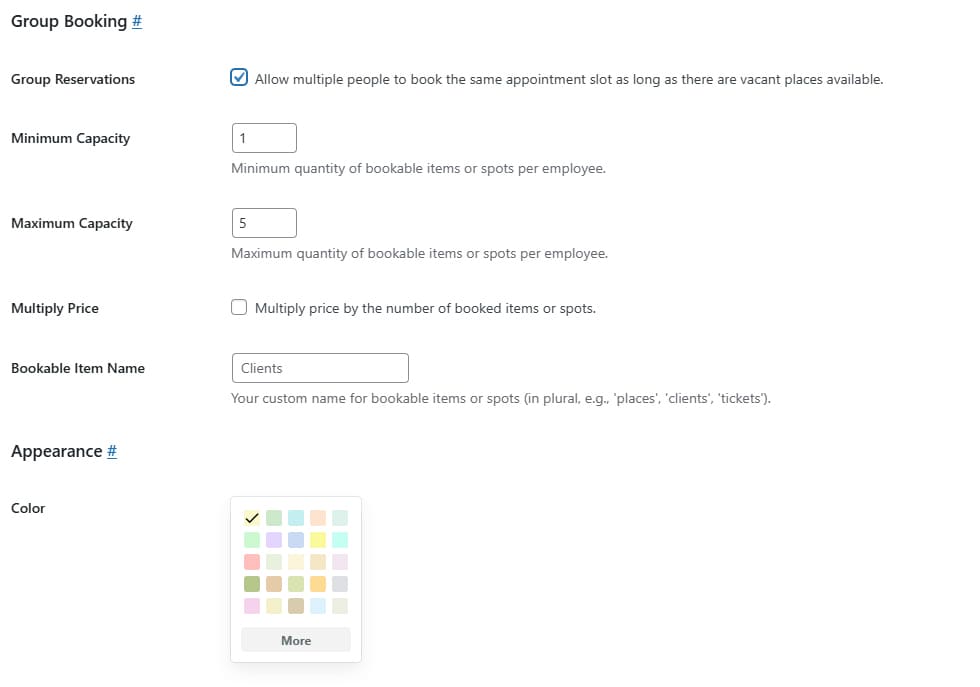
- On the same page, you can also configure your service as well as enable the group booking feature under the corresponding section of service settings. Don’t forget to set the capacity for the service (online lesson, consultation, etc.) to be booked for a group. Don’t forget that in this case, all group members will get the same shared link for a video meeting.
- After making these and other necessary changes on the page, press the Publish/Save button in the upper right corner to finalize your edits.
Step 5. Add Video Meeting Links in the Email
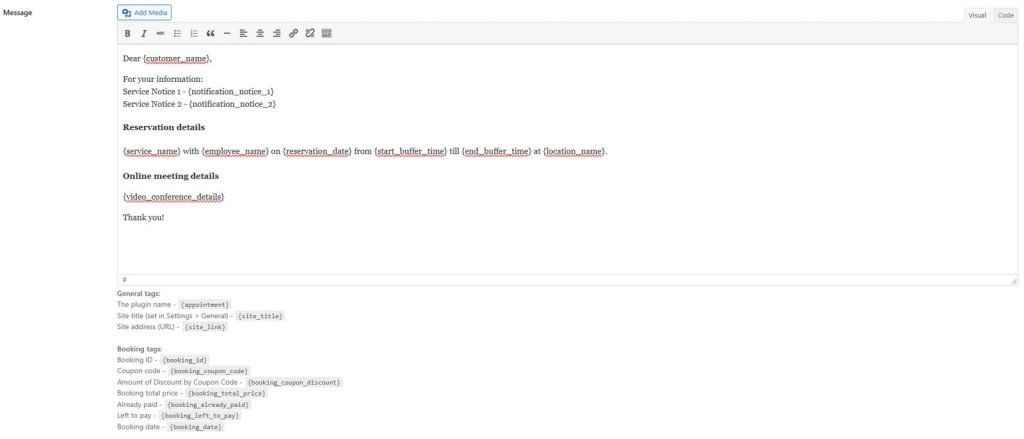
Appointment Booking has an integrated email notification system that allows sending reminders automatically based on the set triggers of appointment. It supports tags – specific placeholders that insert useful data into notifications without you having to edit them manually for each booking. The video conference WordPress plugin introduces a new tag that automatically inserts all video call details that your clients need to know after they make a booking. Let’s take a look at how to add it to a notification.
- Open the Notifications tab, select the existing notification, and press Edit.
- In the notification settings, scroll down to the Message section.
- Using the editor, you can change how your email template looks.
- To add video meeting links and other related information, simply add the tag {video_conference_details} to the template.
- After making changes, press the Update button in the upper-right corner of the page.
How to Configure the Video Conference WordPress Plugin: Video Guide
If you want to know more about managing video meetings via Zoom and Google Meet using the WordPress video conferencing plugin, we recommend that you watch the video guide below. It explains every step of configuring the webinar plugin for WordPress to serve your appointment booking needs in a simple and easy-to-understand way.
Conclusion
As you see, the video conference WordPress plugin for Appointment Booking can not just provide video meeting capabilities in your workflow. This solution can also help you benefit from new ways of communication between your employees and clients. When combining scheduling with real-time communication in one seamless process, this WordPress Google Meet plugin can save time, ensure better engagement, and build a convenient experience for everyone, from students and clients to teachers and event hosts. Besides, using such WordPress Zoom plugins can provide additional advantages, such as:
- Seamless video meeting scheduling: Thanks to solutions that allow for smooth online video conferencing, clients can book appointments using the appointment calendar and join video calls from one place without having to schedule a separate offline meeting.
- Improved communication: Many customers trust well-established apps like Zoom and Google Meet. With this solution, you can ensure that important meetings happen on a safe and reliable platform.
- Better client experience: By introducing a professional appointment booking and online meeting flow via a WordPress video consultation plugin, you can increase trust and satisfaction without having to develop or design anything from scratch for your business website.
- Enhanced time management: In addition to all previous benefits, with this add-on, you can improve your time management by applying custom time slots to prevent double bookings and sort your workday’s schedule with the WordPress Zoom plugin.